
- Published on
How to Make Chrome Read Any Web Page Aloud (Free Text-to-Speech Extension)
- Authors

- Name
- Speechise Team
You have fifteen tabs open. Three of them are articles you really do want to read, one is a PDF report someone sent you, and all of them have been sitting there since last week. Reading them means another hour of staring at a screen — and your eyes have had enough of that already.
There's an easier way: let Chrome read the page to you. With a text-to-speech extension, any article, blog post, or PDF you open in the browser can be read aloud in a natural voice while you lean back, take notes, or just rest your eyes. This guide shows you how to set it up in under a minute.
New: Speechise for Chrome
Speechise now has a Chrome extension. It brings the same AI voices you know from the Speechise website right into your browser: open any page, click the Speechise icon, and press Read this page.
- Reads web pages and PDFs aloud, directly in Chrome
- Natural AI voices in 20+ languages, with automatic language detection
- Highlights each sentence as it's being read
- Free to use — no account required
Add Speechise to Chrome — it's free
How to Make Chrome Read a Web Page Aloud in 4 Steps
1. Install the extension
Open the Speechise page in the Chrome Web Store and click Add to Chrome. Pin the Speechise icon to your toolbar (click the puzzle-piece icon, then the pin next to Speechise) so it's always one click away.
2. Open the Speechise side panel
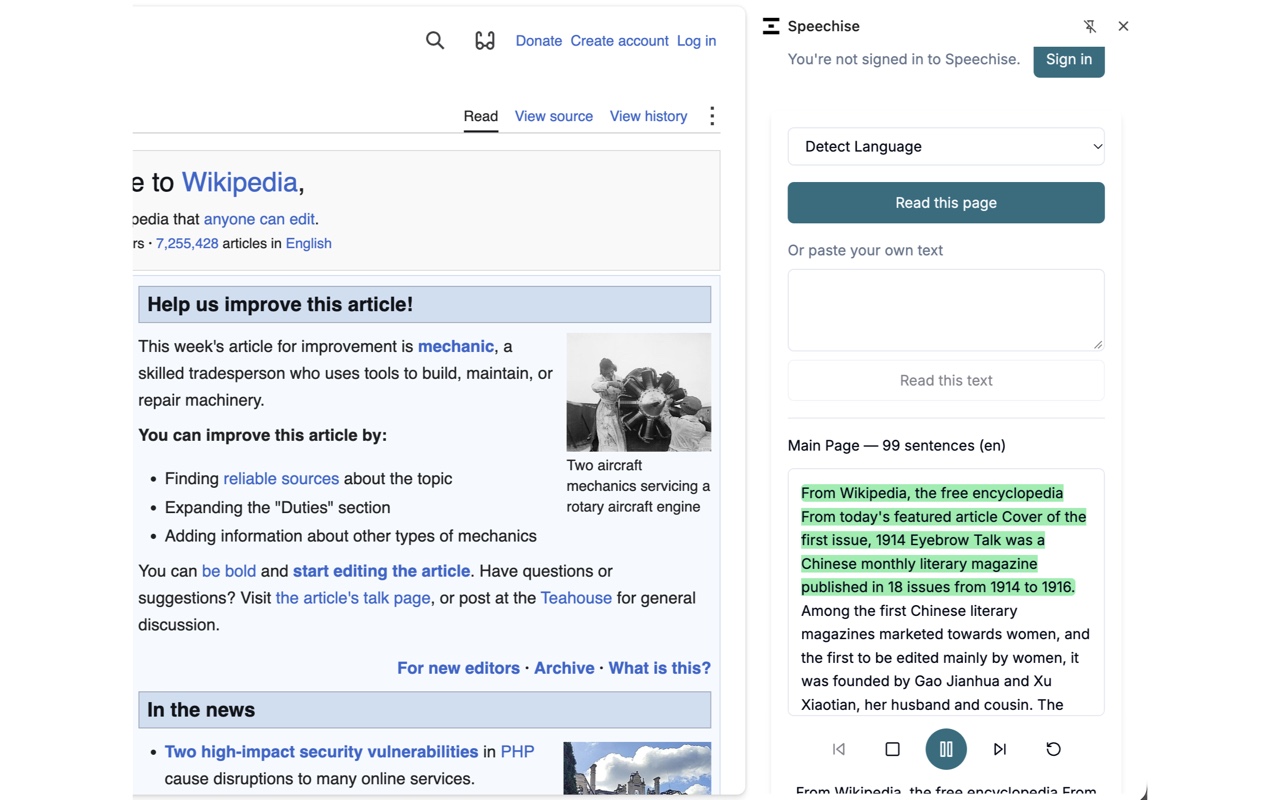
Go to the page you want to listen to and click the Speechise icon. The extension opens in Chrome's side panel, next to the page — so the article stays in view while it's being read.
3. Click "Read this page"
Speechise pulls the article text out of the page, detects its language, and starts reading from the first sentence. The sentence being read is highlighted in the side panel, so you can follow along or glance back at any time.
4. Control playback
Use Pause and Resume when you need a break, skip back to the previous sentence if you missed something, or jump ahead to the next sentence to skip a passage. Reset stops the reading and clears it, so you can start fresh on another page or text.
It Reads the Article — Not the Menus and Ads
The most annoying thing about most read-aloud tools is that they read everything: the navigation bar, the cookie banner, "Subscribe to our newsletter," and the share buttons under every paragraph.
Speechise finds the main content of the page first — the headline and the body of the article — and reads only that. Menus, sidebars, ads, and footers are skipped automatically. You get the article as the author wrote it, not the page as the browser renders it.
Two more details make long reads easier:
- Sentence highlighting. The current sentence is highlighted as it's read, which makes it easy to follow along or find your place after a distraction. If staying focused on long text is hard for you, see our guide to text-to-speech for ADHD.
- No awkward gaps. Speechise prepares the next few sentences in advance while the current one plays, so the reading flows from one sentence to the next without waiting.
How to Read a PDF Aloud in Chrome
PDFs are where most people give up on reading — long reports, research papers, and manuals are exactly the documents that are hardest to get through on a screen.
With the extension installed, there's nothing extra to do: open the PDF in Chrome as usual, click the Speechise icon, and press Read this page. The PDF opens right in your browser and Speechise reads its text aloud, just like an article. You don't need to download the file, upload it anywhere, or convert it first.
Prefer working with the file itself? You can still upload PDFs, Word documents, and ebooks on the Speechise website and download the result as audio.
Listen to Any Text — Just Paste It
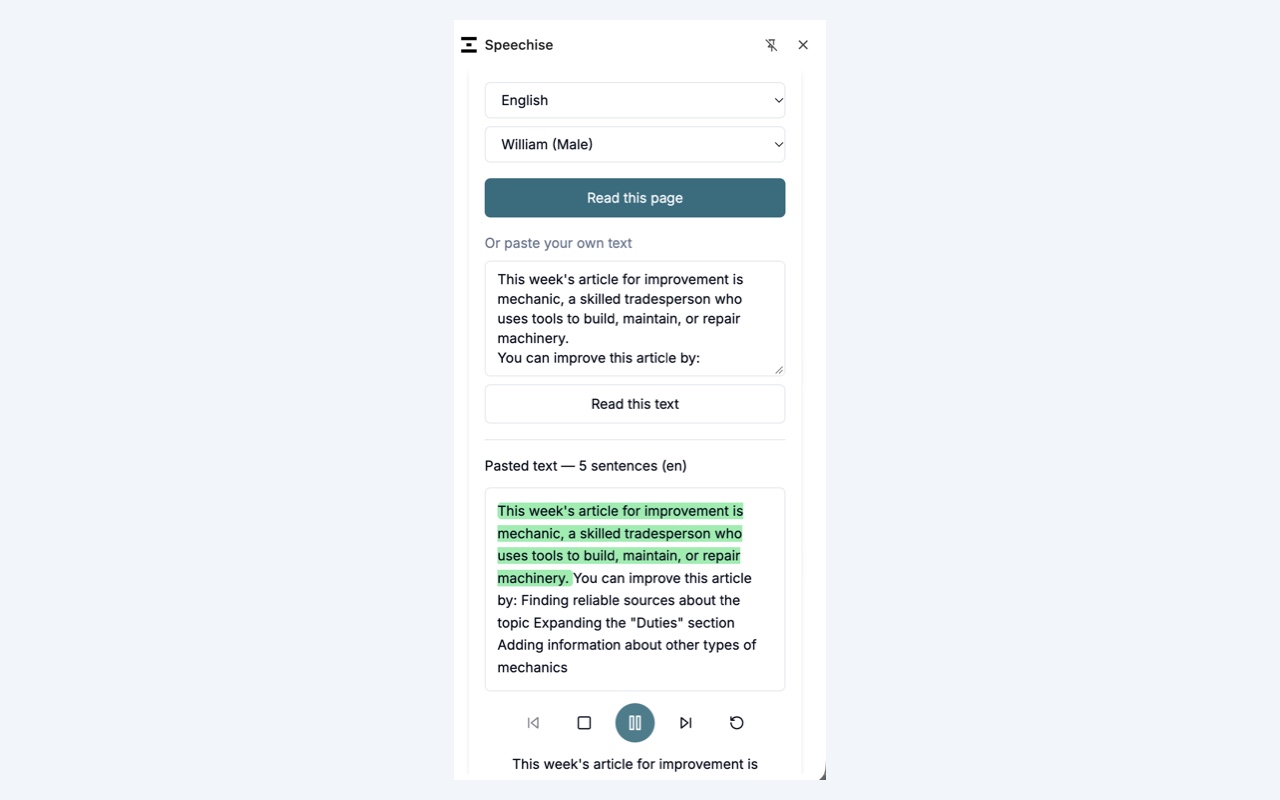
Not everything you want to hear lives on a web page. For an email, a chat message, notes, or a paragraph from a document, paste the text into the text box in the Speechise side panel and press Read this text. It's the quickest way to proofread your own writing by ear, too — typos and clumsy sentences are much easier to catch when you hear them.
Voices and Languages
The extension uses the same voices as the Speechise website: 40+ natural AI voices across 20+ languages, including English, Spanish, French, German, Italian, Portuguese, Arabic, and more.
- Automatic language detection. Leave the language on Detect Language and Speechise figures out the language for you — a German news site gets a German voice with no setup.
- Pick your favorite voice. Choose a language and a voice explicitly if you have a preference; the extension remembers your choice for next time. Not sure which to pick? Here's how to choose a voice.
Private by Design
A read-aloud extension needs to see the text of the page you want to hear — but that's all it should need. Speechise doesn't run on the pages you visit in the background. It gets access to a page only when you click Read this page: Chrome gives it temporary access to that tab, and the extension takes out the article text. If you'd rather not do that tab by tab, you can allow Speechise to read pages on all sites — that's optional and stays off unless you turn it on.
The text you choose to read is sent to Speechise to be turned into speech, and nothing else. The extension doesn't collect your browsing history, doesn't change the pages you visit, and has no ads or tracking. The details are in our privacy policy.
What to Know Before You Start
- It's free, and you don't need an account. Install the extension and start listening right away. Signing in is optional — if you already have a Speechise account, click Sign in in the side panel and the extension uses the same account as the website.
- Free plan limit. On the free plan, each reading — a web page, a PDF, or pasted text — is limited to 500 characters, enough to try a voice or listen to a short piece. For full-length articles and documents, a one-time character pack or Premium raises the limit — the Upgrade button in the side panel takes you to the pricing page.
- It needs a recent version of Chrome. The extension requires Chrome 151 or newer. If the Web Store says it isn't compatible, update Chrome (Menu → Help → About Google Chrome) and try again.
- It needs an internet connection. The voices are generated in the cloud, so the extension doesn't work offline. To listen offline, use the Speechise website to download your text as an MP3.
Frequently Asked Questions
Can Chrome read web pages aloud for free?
Yes. Install the free Speechise extension, open any web page, click the Speechise icon, and press Read this page. There's no sign-up required. The free plan reads up to 500 characters at a time; for full-length articles, a one-time character pack or Premium raises the limit.
How do I get Chrome to read a PDF aloud?
Install the Speechise extension, open the PDF in Chrome, then click the Speechise icon and press Read this page. The PDF's text is read aloud right in the browser — no upload or conversion needed.
Does the extension highlight text while reading?
Yes. The sentence currently being read is highlighted in the Speechise side panel, so you can follow along and never lose your place.
Which languages does the Speechise extension support?
More than 20 languages, with 40+ AI voices. Speechise detects the language of the page automatically, or you can pick a language and voice yourself.
Does it work offline?
No — Speechise voices are generated in the cloud, so you need an internet connection while listening. To listen offline, convert your text on the Speechise website and download it as an MP3.
Do I need a Speechise account to use the extension?
No. You can read pages aloud without signing in. An account is only needed if you want a paid plan's higher character limits.
Start Listening
Pick the longest article in your open tabs, click the Speechise icon, and press Read this page. It's the fastest way to clear a reading backlog — and give your eyes a break while you do it.
Add Speechise to Chrome — free
Want to take articles with you on the go? Read our guide on turning articles and newsletters into a podcast.